

Cell References in Google Sheets: A1, Absolute & Relative Explained
- Peter J.

- Jul 3
- 6 min read
A cell reference is the address of a cell in a spreadsheet; like A1, B3, or C10. When you use a cell reference in a formula, the formula reads the value from that cell rather than using a fixed number. There are two kinds: relative references (like A1) that change automatically when you copy a formula, and absolute references (like $A$1) that stay locked in place. Knowing the difference makes your formulas far more powerful.
This applies to both Google Sheets and Excel; the rules are identical on both platforms.
What Is a Cell Reference?
Think of cell references like the address on a house. If you tell Google Sheets “look at cell B2,” it goes to column B, row 2, and reads whatever value is there.
The advantage is huge: instead of typing a number directly into a formula, you point the formula to the cell that holds the number. If you change the cell’s value later, the formula updates automatically.
Example:
A | B | |
1 | Price | $50 |
2 | Tax rate | 0.08 |
3 | Total |
In cell B3, instead of typing =50 0.08, you’d type =B1 B2. Now if you change the price in B1, the total in B3 updates instantly.
Relative References: The Default
When you type A1 in a formula, that’s a relative reference. It means “the cell that is X columns to the left and Y rows above this formula cell.” The reference is relative to where the formula is.
This becomes important when you copy a formula to other cells.
Example: Say you have this setup:
A | B | C | |
1 | 10 | 20 | |
2 | 30 | 40 | |
3 | 50 | 60 |
You type =A1+B1 in cell C1. This gives you 30.
Now you copy that formula and paste it into C2. Google Sheets automatically adjusts the formula to =A2+B2; giving you 70. Copy to C3 and it becomes =A3+B3.
This automatic adjustment is relative referencing at work. The formula “follows” as you copy it down.

💡 Tip: This is why relative references are the default. Most of the time, when you copy a formula down a column, you want it to automatically apply to the new row.
Absolute References: Locking a Cell
Sometimes you don’t want the formula to adjust when you copy it. You want to always point to one specific cell. That’s where the dollar sign $ comes in.
A $ in front of the column letter locks the column: $A1 always refers to column A, no matter where you copy the formula.
A $ in front of the row number locks the row: A$1 always refers to row 1.
Use $ before both to lock the cell completely: $A$1 always refers to cell A1, full stop.
Real example; a tax rate that applies to every row:
A | B | C |
Price | Tax Rate | Tax Amount |
$100 | 0.08 | |
$250 | ||
$75 |
You want column B to calculate the tax for each price. In B3, you’d type:
=$A2 * $B$2Breaking this down:
$A2; always column A, but the row number (3) can change as you copy the formula down
$B$2; always cell B1, both column and row locked; the tax rate never changes
Now copy B2 down to B3 and B4. The formula becomes =$A3 $B$1 and =$A4 $B$1. The tax rate cell ($B$2) stays locked. The price row adjusts. That’s exactly what you want.
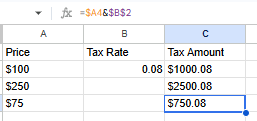
⚠️ Watch out: One of the most common formula errors is copying a formula that uses a relative reference when you needed an absolute one. The result looks right for the first row but is wrong for every other row. If your copied formulas give strange results, check whether any cell references need a $.
Mixed References: Locking Only Part
You can lock just the column or just the row:
Reference | What changes when copied | What stays locked |
A1 | Both column and row adjust | Nothing locked |
$A1 | Only the row adjusts | Column A always |
A$1 | Only the column adjusts | Row 1 always |
$A$1 | Nothing adjusts | Fully locked |
Mixed references are most useful when you’re building a multiplication table or a grid where one dimension stays fixed and the other changes.
How to Add Dollar Signs Quickly
You don’t have to type $ manually every time. There’s a keyboard shortcut:
Click the cell reference inside your formula (in the formula bar or the cell).
Press F4 (Windows) or Cmd + T (Mac).
Each press cycles through the four options: A1 → $A$1 → A$1 → $A1 → back to A1.
This is much faster than manually adding $ signs.
💡Tip: Get in the habit of pressing F4 immediately after typing a cell reference you know should be absolute. It’s faster and less error-prone than adding the $ signs by hand.
Named Ranges: A Friendlier Alternative to Absolute References
If locking cells with $ feels confusing, there’s another option: named ranges.
Instead of writing $B$1 for your tax rate, you can name that cell “TaxRate.” Then your formula looks like:
=$A3 * TaxRateMuch easier to read.
To name a range in Google Sheets:
Select the cell or range you want to name.
Go to Data > Named ranges.
Type a name (no spaces; use underscores like Tax_Rate) and click Done.
To name a range in Excel:
Select the cell or range.
Click the Name Box (top-left) and type your name.
Press Enter.
Named ranges also stay locked when you copy formulas, so they behave like absolute references. And they make your formulas much easier to understand at a glance.
How Cell References Work Across Sheets
You can also reference a cell in a different sheet within the same file. The format is:
Google Sheets: SheetName!A1; for example, =Sheet2!B3 reads the value from cell B3 on Sheet2.
Excel: Same format: =Sheet2!B3
If your sheet name has spaces, wrap it in single quotes: ='My Data'!B3
This is useful when you have data on one sheet and a summary on another; the summary can pull values directly from the data sheet without copying and pasting.
Common Mistakes
Forgetting $ when the formula should be absolute. Copy a formula down a column and check the first few cells to make sure references are adjusting the right way (or not at all, if that’s what you need).
Adding $ when you don’t need to. Absolute references aren’t better than relative ones; they’re just different. Only lock a cell when you have a specific reason to.
Misreading the cell address. Remember: column letter first, row number second. B3 is column B, row 3. See our rows vs columns guide if you want to review the basics.
Frequently Asked Questions
What’s the difference between a cell reference and a cell value?
The value is the actual number or text stored in a cell. The reference is the address you use to point to that cell. When a formula uses a reference, it reads the value. If the value changes, the formula updates automatically.
Can I reference a cell in a completely different spreadsheet file?
In Google Sheets, yes; this is called an IMPORTRANGE. In Excel, you can reference other workbooks, but the file path gets embedded in the formula and can break if you move files.
What happens to cell references when I insert a row?
When you insert a row above data that a formula references, Google Sheets and Excel automatically update the references. If B5 is referenced by a formula and you insert a row above row 5, the reference updates to B6. This is smart and usually helpful.
Why are there green triangles in the corners of my cells?
These are error indicators. A common one says “Inconsistent formula”; meaning the formula in that cell doesn’t match the pattern of the formulas around it. It’s often a sign that a reference that should be relative is absolute, or vice versa.
Wrapping Up
Cell references are the foundation of everything in spreadsheets. Relative references move when you copy formulas; perfect for applying the same calculation to many rows. Absolute references (with $) stay locked; essential when your formula needs to always point to one specific cell, like a tax rate or a conversion factor.
Once you’re comfortable with this, formulas become far more useful:
Learn to add up numbers with SUM; your first real formula.
Try IF statements; they depend heavily on cell references.
Or go back to the beginning with rows vs columns if you need a refresher on how the grid is organized.


Comments