

Excel for Beginners: Everything You Need to Get Started
- Peter J.

- Jul 3
- 7 min read
Microsoft Excel is the world's most widely used spreadsheet program. It lets you store, organize, and calculate data in a grid of rows and columns. Whether you're tracking expenses, building a schedule, or making a list, Excel handles it all. This guide covers everything you need to get started; from opening the program to saving your first file.
If you've never used a spreadsheet program before, you're in the right place. And if you use Google Sheets and are new to Excel, this guide highlights the key differences as you go.
What You'll Need Before You Start
Excel is a paid program. Here's what you might have:
Version | Where you get it | Notes |
Microsoft 365 | Subscription (monthly/annual) | Always up to date. Includes the web version |
Excel 2021 / 2019 / 2016 | One-time purchase | Still powerful, but some newer functions (like XLOOKUP) aren't available |
Excel for Web | office.com (free with Microsoft account) | Works in a browser, similar to Google Sheets |
Excel for Mac | Microsoft 365 or standalone purchase | Same features, slightly different shortcuts |
💡Tip: Not sure which version you have? Open Excel and go to File > Account (Windows) or Excel > About Excel (Mac). The version number shows there.
How to Open Excel and Create a New File
Step 1: Open Excel
On Windows, search for "Excel" in the Start menu and click the app. On Mac, find it in your Applications folder or the Dock.
Step 2: Create a New Workbook
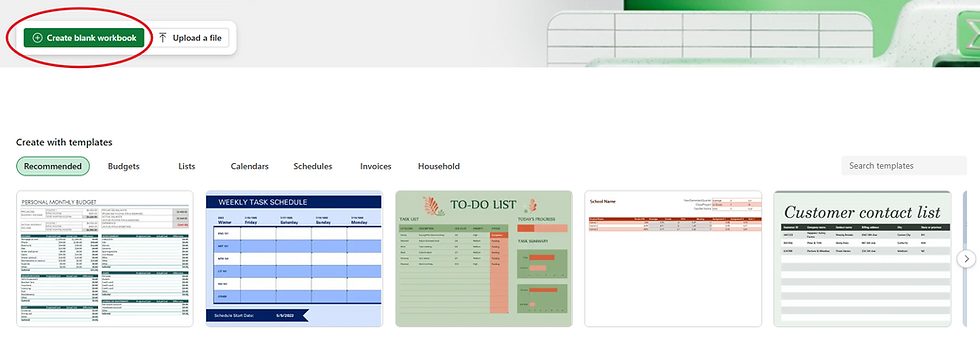
You'll land on the Excel Start screen. Click Blank workbook to open a new, empty spreadsheet. Excel calls each file a "workbook." A workbook can hold multiple sheets (more on that below).

Step 3: Name Your File
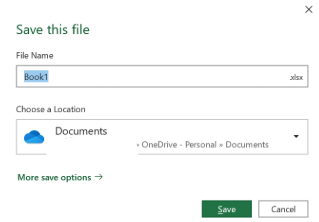
Go to File > Save As and type a name for your file. Choose a folder, then click Save. Unlike Google Sheets, Excel does not auto-save by default unless you're saving to OneDrive with AutoSave turned on.
For a full guide on all the ways to save in Excel, see our article on [how to save an Excel file](how-to-save-excel-file).
A Tour of the Excel Interface
Once you have a blank workbook open, here's what you're looking at:
Part | What it is |
Ribbon | The wide toolbar at the top with tabs like Home, Insert, Formulas, Data. This is where most commands live |
Formula bar | The white bar below the ribbon. Shows the content of whichever cell you've selected |
Name Box | The small box at the far left of the formula bar. Shows the address of the selected cell (like `A1`) |
Columns | Vertical strips, labeled A, B, C across the top |
Rows | Horizontal strips, labeled 1, 2, 3 down the side |
Cells | Each box where a column and row intersect |
Sheet tabs | Tabs at the bottom of the screen. Each tab is a separate sheet within your workbook |
The Ribbon is the biggest difference between Excel and Google Sheets. Excel organizes commands into tabs. The Home tab is where you'll spend most of your time; it has formatting tools, copy/paste, and alignment options.

How to Enter and Edit Data
Step 1: Click a Cell
Click any cell in the grid to select it. The selected cell gets a green border. Its address appears in the Name Box (top-left).
Step 2: Type Your Data
Type text, a number, or a formula. What you type appears in both the cell and the formula bar.
Text: Just type it. Excel left-aligns text by default
Numbers: Just type the number. Excel right-aligns numbers by default
Dates: Type in your preferred format (e.g., `6/28/2026` or `Jun 28, 2026`). Excel recognizes most date formats
Formulas: Always start with `=`. For example: `=A1+B1` or `=SUM(A1:A10)`
Step 3: Confirm What You Typed
Press Enter to confirm and move down. Press Tab to confirm and move right. Press Escape to cancel.
Step 4: Edit an Existing Cell
Double-click a cell to edit it directly. Or press F2 on your keyboard to enter edit mode. You can also click the cell once and edit it in the formula bar.
⚠️Watch out: If you single-click a cell and start typing, you'll replace whatever was there. Double-click or press F2 if you want to add to what's already in the cell.

How to Navigate Around Your Spreadsheet
Using the mouse to click every cell gets slow fast. Keyboard shortcuts make navigation much easier:
Action | Windows | Mac |
Move one cell | Arrow keys | Arrow keys |
Jump to last cell in a row of data | Ctrl + Right arrow | Cmd + Right arrow |
Jump to first cell (A1) | Ctrl + Home | Cmd + Fn + Left |
Select entire column | Click column letter | Click column letter |
Select entire row | Click row number | Click row number |
Select a range | Click and drag | Click and drag |
To select a large range quickly, click the first cell, then hold Shift and click the last cell. Everything in between gets selected.
Not sure about the difference between rows and columns? Our guide on [rows vs columns](rows-vs-columns) explains it clearly with a memory trick.
How to Add, Delete, and Hide Rows and Columns
Adding Rows or Columns
Right-click on a row number or column letter. Choose Insert from the menu. A new, empty row or column appears. Excel shifts the existing content to make room.
Deleting Rows or Columns
Right-click the row number or column letter. Choose Delete. The row or column and all its content disappear, and everything shifts to close the gap.
⚠️Watch out: There's no confirmation before deletion. Press Ctrl + Z (Windows) or Cmd + Z (Mac) immediately if you delete the wrong thing.
Hiding Rows or Columns (Instead of Deleting)
If you want to keep data but not see it, right-click the row number or column letter and choose Hide. The data stays; it's just invisible. To show it again, select the rows or columns on either side of the hidden one, right-click, and choose Unhide.

How to Work with Multiple Sheets
Every Excel workbook starts with one sheet called "Sheet1." You can add more.
Click the + button at the bottom of the screen to add a new sheet.
Double-click a sheet tab to rename it.
Right-click a tab to move, copy, or delete it.
Click and drag a tab to reorder your sheets.
This is useful for organizing related data. For example: one sheet for each month, or one sheet for each department.
---
Understanding Excel's Ribbon in 60 Seconds
The Ribbon has several tabs. Here's what lives where:
Tab | What you'll find there |
Home | Font, alignment, number format, copy/paste, insert/delete cells |
Insert | Charts, tables, images, shapes |
Page Layout | Print settings, margins, orientation |
Formulas | Function library, named ranges, formula auditing |
Data | Sort, filter, import data, remove duplicates |
Review | Comments, spell check, protect sheet |
View | Freeze panes, zoom, split windows |
You can also press Alt (Windows) to activate keyboard shortcuts for every Ribbon item; a letter appears above each tab to show you which key to press.
How to Save Your Workbook
Excel does NOT auto-save unless you're using OneDrive with AutoSave turned on. Save regularly with:
Ctrl + S (Windows) or Cmd + S (Mac) to save over the current file
File > Save As to save a copy with a new name or in a different format
Common file formats:
Format | When to use |
.xlsx | Standard Excel format. Use this most of the time |
.csv | Plain text, no formatting. Good for sharing data with other programs |
When you want to share a read-only version that looks exactly as you formatted it |
For a full guide on saving options, see our article on [how to save an Excel file](how-to-save-excel-file).
---
Common Mistakes Excel Beginners Make
Not saving often enough. Excel doesn't auto-save locally. Press Ctrl + S after every few changes
Forgetting the `=` sign before a formula. Without `=`, Excel treats your formula as plain text
Typing numbers as text. If a number cell is formatted as Text, Excel won't calculate it. You'll see a small green triangle in the corner as a warning
Deleting rows that formulas reference. Always check what depends on a row or column before you delete it
Pressing Enter in the middle of typing a long formula. Finish the formula completely before pressing Enter, or it will close early
Frequently Asked Questions
Is Microsoft Excel free?
Excel is not free as a standalone program, but Microsoft offers Excel for Web (browser-based) for free at office.com with a Microsoft account. The desktop app requires a Microsoft 365 subscription or a one-time purchase of Office.
What's the difference between Excel and Google Sheets?
Both are spreadsheet programs. Excel is a desktop app (and web app) from Microsoft; Google Sheets is a browser-based app from Google that's free. They share most features. For a more detailed comparison, check out our [Google Sheets for Beginners guide](google-sheets-for-beginners) to see where they differ.
How do I freeze the top row so headers stay visible while I scroll?
Go to the View tab and click Freeze Top Row. Your header row will stay in place no matter how far you scroll down. For more options, see our guide on [how to freeze rows and columns in Excel](freeze-rows-columns-excel-google-sheets).
Can I open a Google Sheets file in Excel?
Yes. In Google Sheets, go to File > Download > Microsoft Excel (.xlsx). Then open that file in Excel. Most formatting and formulas will carry over, though some Sheets-specific functions may need adjusting.
What is a workbook vs a worksheet in Excel?
A workbook is the entire file (the .xlsx file). A worksheet (or sheet) is one of the tabs inside the workbook. One workbook can contain many worksheets.
---
Wrapping Up
You now know how to open Excel, understand the ribbon and interface, enter and edit data, navigate around, and save your work. Those are the building blocks everything else depends on.
Ready to keep learning? These guides will take you further:
Learn the difference between Rows and Columns; it matters a lot once formulas get involved
Try Merging Cells in Exce to combine headers across columns
Discover how to Split text into Columns to separate combined data like full names into first and last


Comments